The most obvious way to use Microsoft SQL Server is to just install it on your computer. But doing so uses resources on your current computer and it becomes something that is part of your normal OS. I was looking for a way to run SQL server in a more isolated mode where I can turn it on and off without affecting my main OS. The first obvious method is to use a Virtual Machine using Hyper-V or VirtualBox... But I figure, why not a container using Podman? The first thing to consider with a Docker or Podman container on a Windows computer is the need to install Windows Subsystem for Linux. It's not a hard thing to do and is a requirement to even get Podman installed and running on your WIndows computer. I won't go over that here, but instead continue with the steps to get a SQL Server container created.
NOTE: These instructions are based of assistance I obtained from Microsoft CoPilot.
Step 1: In Podman Desktop, In the "Images > Pull an Image" section, find the following image and pull it.
mcr.microsoft.com/mssql/server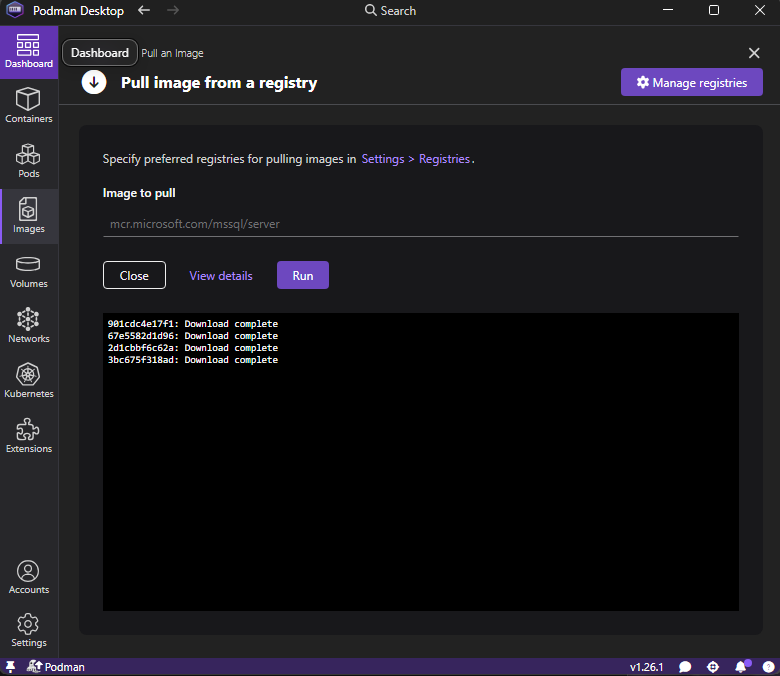
Step 2: Create New Container from this image, When asked for a ContainerFile or Existing Image, choose the “Existing Image” option, and select the image we pulled.

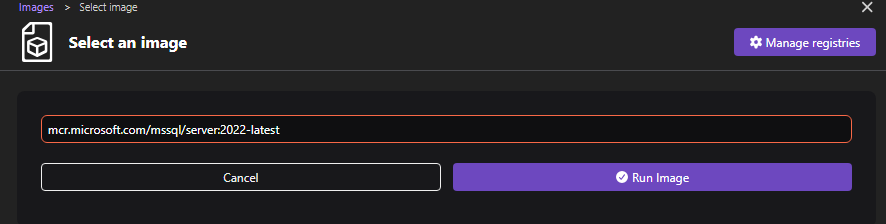 Click the “Run Image” button and now we enter in the basic information for our Container.
Step 3: We now need to configure our container with the following information:
| Container Settings | ||
|---|---|---|
| Container Name | YourContainerName | |
| Volumes: Path to the host | mssqlserver | |
| Volumes: Path inside the container | /var/opt/mssql | |
| Port Mapping | 1433 | This is the default network port used by SQL Server. |
| Environment Variables: | ||
| ACCEPT_EULA | Y | |
| MSSQL_SA_PASSWORD | YourDBPasswordF0rSA | The password needs to meet a minimum complexity criteria. |
| MSSQL_ENCRYPT | Optional | This is important for dev tools to connect to our container. |

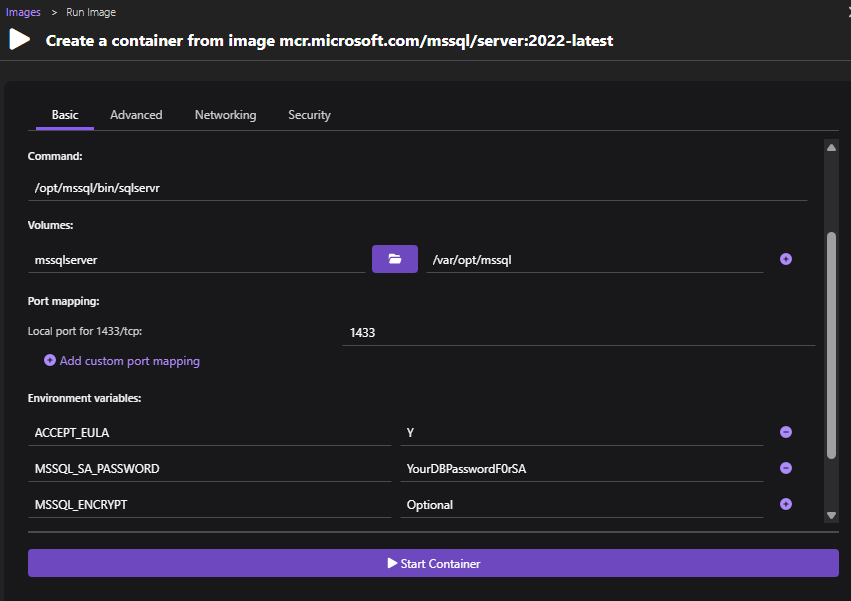 Now click the “Start Container” button
Check the logs and ensure there are no errors, ensure the last line shows a “Recovery is complete”.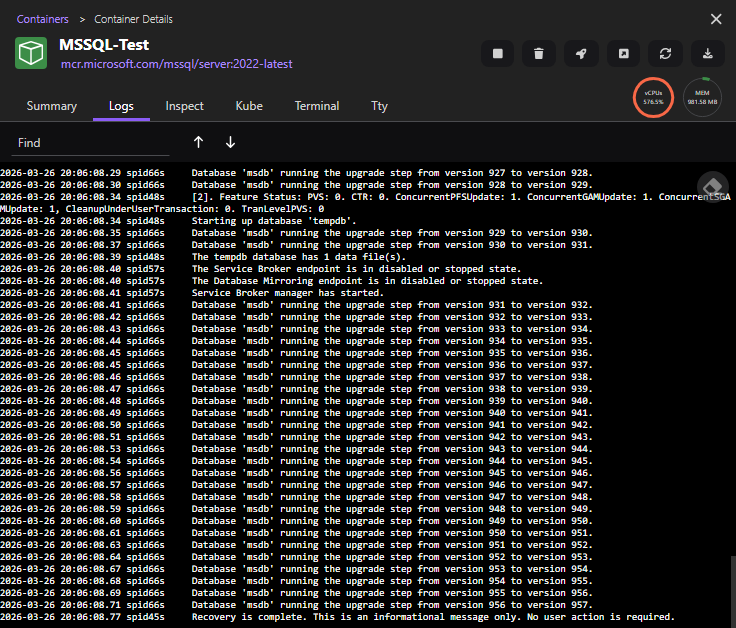
Step 4: Connect to the database and confirm operation.
Now the container should be running, we now use our tool of choice to connect to the database. I will be using Microsoft SQL Server Management Studio, and connect with the following settings:
| Connect to Server Settings | ||
|---|---|---|
| Server Name | 127.0.0.1 | need to use this, localhost doesn’t work. No need to use the port. |
| Login | sa | |
| Password | The one you used above |
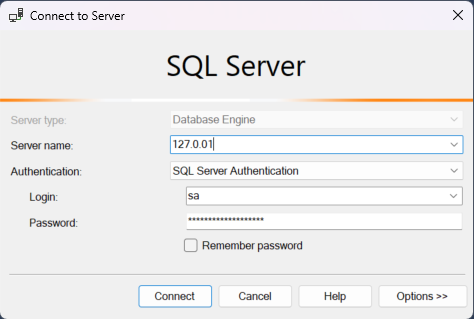
If everything worked, you will now be connected to your SQL Server database.